Writing 5 min read
How to add captions to Twitter videos and check that they make sense
Upload an SRT caption file on X web, review words and timing, and check a product demonstration with captions enabled rather than trusting an automatic transcript.
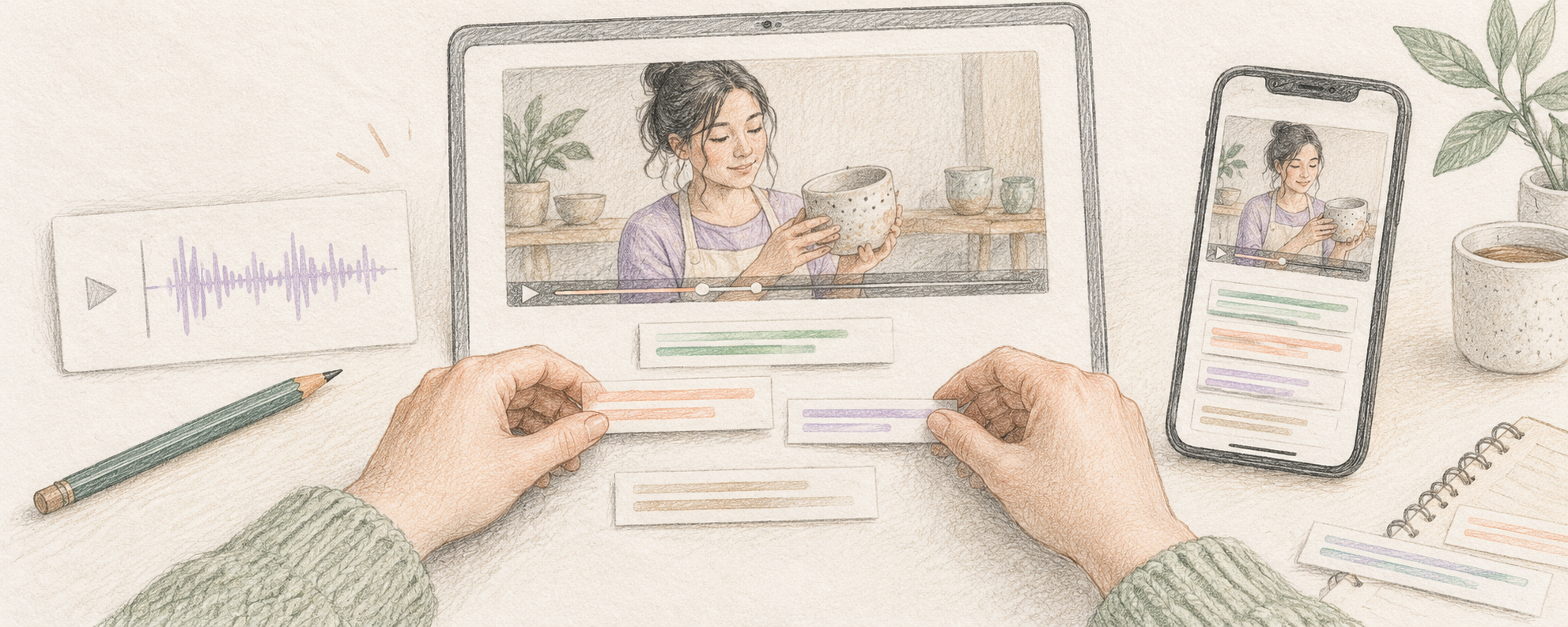
How do you add captions to a video on X?
On X’s website, attach the video to your post, select “Upload caption file (.srt)” below it, choose your caption file and select Done. X’s guidance says the caption language then appears below the video; when the video plays with captions enabled, the captions appear near its bottom. Review the words, timing and video before posting, then check the published result. X currently documents this caption-file upload feature as web only, so do not assume a mobile app or third-party scheduler offers the same controls.
On 19 October 2026, we compared searches about uploading video captions, finding old posts and time-zone scheduling. Caption results mixed current X Help with much older discussions saying support was absent. This guide resolves that practical intent using X’s upload instructions and W3C’s caption guidance. The evidence is qualitative current search results, not measured search volume, difficulty or a ranking promise. The examples below are fictional editing exercises, not product screenshots or claims that captions increase reach.
X Help: upload a caption file to a video postW3C WAI: captions, subtitles and accuracyWhat should a useful caption file contain?
Captions convey speech and the non-speech audio needed to understand the video, synchronised with the sound. W3C distinguishes captions that viewers can show or hide from open captions that are always visible in the picture. A caption-file upload creates a different experience from exporting a video with text permanently burned into it. Keep the final video and its matching caption file together so later edits do not leave the timestamps attached to the wrong version. A plain transcript with no timing is useful supporting text, but it is not a timed caption file.
For a fictional file-approval demonstration, the spoken line might be: “This version is not approved for the client.” A transcript that loses “not” reverses the instruction. Review product names, numbers, units, negation and any wording that changes what the viewer should do. Identify a speaker when the identity matters and is not otherwise clear, and describe meaningful sounds rather than every incidental noise. If a confirmation sound is the only signal that a task succeeded, make that information understandable in the captions or narration. Do not invent dialogue or add promotional claims that were never spoken.
How do you review captions before uploading them?
Use automatic transcription as a draft if it helps, then listen through the final video while checking every line. W3C warns that automatic captions are insufficient unless confirmed fully accurate and commonly need editing. Next, watch the sequence with captions on and check whether each line appears with the relevant speech and stays readable long enough to follow. Break phrases at sensible points; avoid forcing a long paragraph into one brief caption. A change to the video’s opening, speed or cut points can shift later captions, so repeat the timing check after those edits.
Use a small review record: video filename, caption filename, language, wording checked, timing checked and final playback checked. For example: “approval-demo-final.mp4; approval-demo-final.srt; English; product name corrected; ‘not approved’ preserved; caption starts with the spoken instruction.” This is a workflow example, not a guarantee that a named file will upload. Use a caption editor that exports SRT, inspect the exported file, and check that it belongs to the final video. Renaming an unrelated document to end in .srt does not add caption timing.
Explain your work without appearing on cameraCheck a draft before schedulingWhat should you check after upload and publication?
Before posting, confirm that X shows the selected caption language and review the actual video and post text. After publication, open the post and enable captions for a playback check. Look for missing lines, timing drift, clipping and interference with important visual details. A successful file selection is not the same as verified playback. If the upload control is absent, compare your publishing surface with X’s documented web workflow; do not assume a scheduler will preserve the caption file or that every client exposes identical controls. Keep the reviewed source files so a failed upload does not require retranscribing the video.
Captions address audio information; they do not automatically explain visual-only actions. If a silent pointer click or a tiny status label is essential to the demonstration, describe it in narration or provide a clear accompanying explanation rather than assuming the caption track covers it. An image’s alt text is a separate feature and is not a replacement for a video’s timed captions. Watch once without sound to assess what the words communicate, and also review the audio and visuals together. The goal is an understandable demonstration with accurate alternatives, not a claim of complete accessibility from one upload.
Write useful alt text for still imagesKeep product claims accurate when correcting a postChoose a clear next step after a demonstration